Fun, kid-friendly drawing app with templates, sound effects, and creative tools ideal for beginners
Fun, kid-friendly drawing app with templates, sound effects, and creative tools ideal for beginners
Pros
- Free alternative to drawing apps for kids and adults
- Comes with templates that mimic coloring book pages
- Has an option for viewing all artwork created in a slideshow
- Includes an option for adding sound effects to pictures
- Features a number of fun and interesting tools
Cons
- Looks pretty outdated and old when compared to newer drawing apps
- Some features are confusing to use
- Frequently runs slow or crashes itself
Tux Paint is a free drawing app designed by its developers to serve as the first introduction that younger kids have to drawing and painting with computers. Once you see how much fun your kids have though, you may want to try it out for yourself.
This app comes with a number of features that you can change and set up based on the age of your kids and how they play with the app. It even lets you change the way your kids save their work. You can tell it to always ask before saving a new drawing on top of one made in the past, to automatically overwrite an older picture when your child draws a new one or to keep the old drawing and save the new one in a new file. It also has an auto save option that automatically saves the work your child did when the app shuts down. This can prevent tantrums and crying fits caused by kids losing their work when the computer shuts down or the battery dies.
One of the best features of this drawing app is that it comes already loaded with a number of different templates. These templates actually turn your computer in to a coloring book. Each template uses dark black lines to create the outline of a drawing. Users can select a template from the home page and pick colors to use on those pages. Users also have the option of picking a blank page to make a drawing or creating a drawing on top of a colorful background.
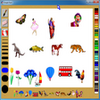
Whether drawing or coloring, this app is easy to use. It features nearly 20 different colors that you can choose from on the bottom of the screen, including black, green, purple and red. Clicking on any color loads it onto your virtual brush and then appears on the screen as you move your mouse. The right side of the screen shows you all the brushes that you can use and gives you an idea of the effect that each one creates.
All the included tools appear in a list on the left side of the screen. You can use a paintbrush, design and use your own stamp, insert texts, add lines or make shapes. It also has undo and erase functions to help you get rid of mistakes. Adults and kids of all ages will like using Tux Paint to make their own drawings and to decorate fun templates.
Pros
- Free alternative to drawing apps for kids and adults
- Comes with templates that mimic coloring book pages
- Has an option for viewing all artwork created in a slideshow
- Includes an option for adding sound effects to pictures
- Features a number of fun and interesting tools
Cons
- Looks pretty outdated and old when compared to newer drawing apps
- Some features are confusing to use
- Frequently runs slow or crashes itself
Pros
- Good for all ages
- Has colouring and drawing templates
- Slide Show
Cons
- It's older, may not suit more sophisticated children
- Slow at times depending on processor speed
Tux Paint is a painting and drawing application for Windows PC.
Tux Paint is compatible with almost every version of Windows for PC including Windows 95, Windows 98, and Windows ME. This is ideal if a family's children are using an older computer for games and school work. Tux Paint is very kid-friendly, although grownups like it too. It has a simple yet colourful interface which is marketed to appeal even to very young children.
One kid-friendly feature in Tux Paint is the autosave/recover option; things are never truly gone should the program be closed by accident. Children who are too young to read may use the program, and can come back to their art project by picking it out of the saved picture's thumbnail. Another feature of note to parents is the settings display - configuration is accessed apart from the drawing interface to prevent accidental setting changes. In this panel lies the ability to pick language, sound effects, and even what shows up in the drawing interface.
Features for Tux Paint are numerous. There are Tux Paint stamps, designs, effects, colours and brushes of all types. It is geared toward child users exploring to find all the cool tools. In the recent past, 100 new stamps have been added, and there are now separate Tux Paint Stamps, which adds yet more options to unleash a child's creative side.
That all said, Tux Paint is a bitmap type of graphics program. It was introduced to the consumer in 2002 and designed by Bill Kendrick. It still has updates available, although software volunteers do the work so updates may not always come in a timely manner. The software was written in C programming language.
More advanced features include blurring, fading, and a filter which makes the picture appear to be chalk drawn on pavement. Free art and photos are available with a license for free distribution inside later versions of Tux Paint.
June 15, 2002 was the first release, which occurred just two days from the date the programmers began working on Tux Paint.
June 30, 2002 added magic tools such as blocks, blur, and negative.
July 31, 2002 support for local areas and languages was added.
October 12, 2004 saw the release of the configuration tool and starter image support.
October 21, 2006 slide show was added along with animated brushes as well as directional brushes.
July 1, 2007 screen size and orientation support as well as SVG and input method support were added.
Pros
- Good for all ages
- Has colouring and drawing templates
- Slide Show
Cons
- It's older, may not suit more sophisticated children
- Slow at times depending on processor speed